Collage Maker & Photo Editor
- 4.9
- Rating
- 50.00M
- Installs
- Free
- Price

 Analysis by App-foxy
I usually judge a collage app by what happens after the first attractive template: can I make something personal without fighting the interface, and does the finished image look intentional rather than crowded? Collage Maker & Photo Editor is built for that exact middle ground. It is a free photography app from Pic Collage Maker & Photo Editor, and my impression is that it works best when I want to turn several ordinary phone photos into a shareable composition quickly.
The appeal is easy to understand. Instead of opening a full photo editor, adjusting every image separately, and then arranging them manually, I can begin with a layout, add pictures, change the spacing, and finish with text, stickers, frames, backgrounds, or cutouts. That makes it especially practical for travel memories, birthday posts, small product displays, school projects, and casual social images. It is not trying to replace a serious desktop design tool, but it does make a common job much less demanding.
The app has been available since April 27, 2016, and its current version is 9.5.3.2. That long presence matters because this is not an experimental photo utility that feels unfinished. It has grown into a familiar, broad editor with a large audience: the listing shows an average rating of 4.9 from around 1.1 million ratings, and more than 50 million installs. Those figures do not guarantee that every screen will suit everyone, but they do explain why the app feels oriented toward quick, repeatable editing rather than a narrow professional workflow.
You May Also Like

 Blood Strike: 2.5 Anniversary
Blood Strike’s Loadouts Turn Every Drop Into a Tactical Gamble
A close look at Blood Strike’s custom loadouts: how fast access to signature weapons reshapes its battle royale rhythm, rewards preparation, and narrows the gap between fights.

 Pandora - Music & Podcasts
Pandora’s Music Is Easy to Start, but Harder to Recover
Pandora’s strength is its low-effort path from a seed to a station. Its weak spot is how much confidence it asks you to place in connection, setup, and quiet recovery.

 8 Ball Pool
 Is Built on Rivalries, Rematches, and Routine
A close look at the rivalries, rematches, shared routines, and unanswered safety questions that turn a quick pool match into a persistent mobile community.

 Samsung Music
’s Quiet Strength Is Playing What You Already Own
Its reach comes less from spectacle than from dependable access to a personal library. That simplicity is both the app’s strongest retention engine and its ceiling.

 AccuWeather: Weather Radar
AccuWeather Review: A Quick, Clear Forecast for Everyday Decisions
For everyday plans, the best forecast is the one you can understand quickly. AccuWeather makes rain timing, radar, and local conditions easy to act on, with a few trade-offs.

 Hill Climb Racing
Why Hill Climb Racing Still Turns Crashes Into One More Run
A tiny car, a bumpy hill and one more upgrade: Hill Climb Racing keeps resurfacing because its simple chaos makes every near-miss feel personal.
More From Our News Desk
View All News


How the current editor feels in everyday use
My normal starting point is a simple grid. I choose the photos first, then look for a structure that gives each image enough room. The important detail is that the layout is not the final decision. I can treat it as a starting frame and then refine the visual balance with borders, backgrounds, and the relative size of each picture. This is more useful than picking a decorative template too early, because a beautiful design can still look awkward if the photos have very different orientations.
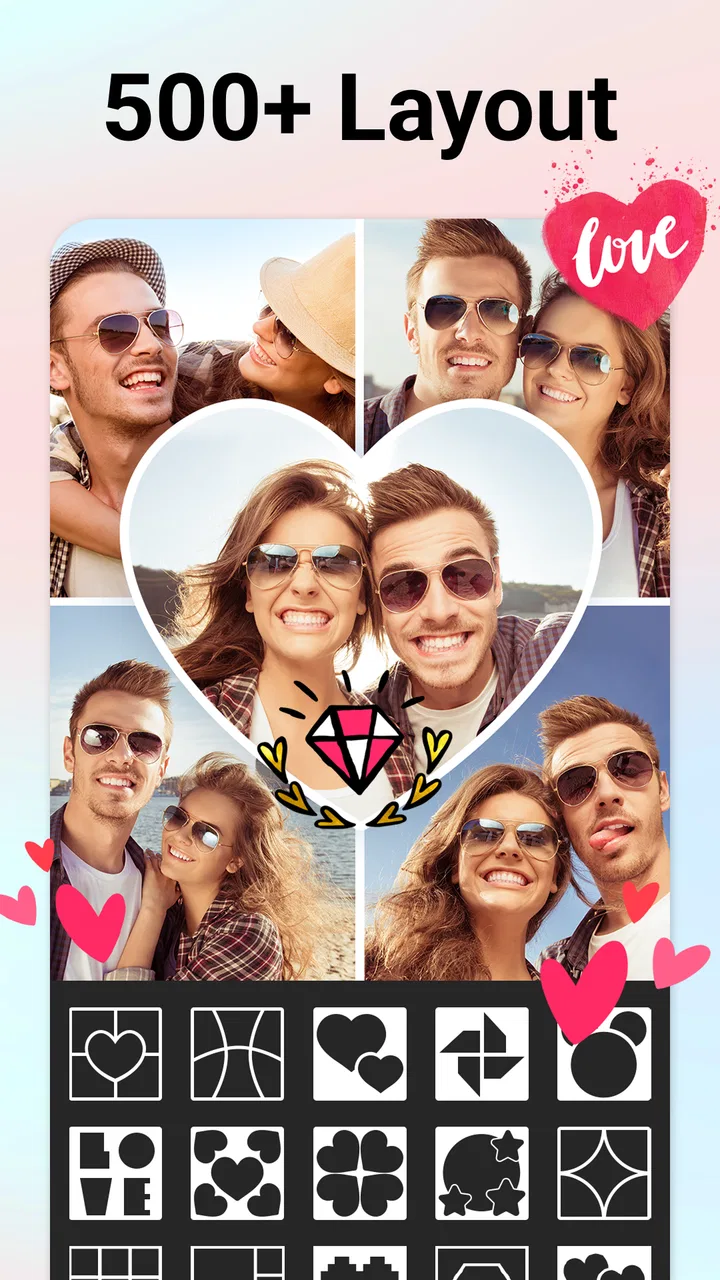
The large selection of layouts is one of the app’s strongest practical features. The store summary refers to more than 1000 layout, grid, sticker, text, background, frame, and cutout options, but the real value is not simply having a long menu. It is being able to switch direction when the first arrangement does not work. For example, a group of portrait photos may need a tall central image, while landscape shots often look cleaner in a wider grid. I find that flexibility more valuable than a single collection of highly polished templates.
A realistic example is a weekend trip. I might select a street view, a meal, a group photo, and a detail shot from the same day. A basic four-cell grid can make the images feel like a contact sheet. By changing the background and giving the main group picture more visual weight, I can make the result read like a small story: arrival, place, people, and memory. The app is particularly good at this kind of quick narrative because the structure is visible while I am still experimenting.
Text tools are useful when I want the image to communicate something immediately, such as a date, a short greeting, or a location. I would keep the wording brief. Long captions compete with the photos, especially when the selected layout already has several visual elements. I also prefer adding text after the image arrangement is stable. If I add a title too soon, I tend to choose a layout around the text instead of around the photographs, which can make the finished collage feel more like a poster than a memory.
Stickers and decorative backgrounds give the editor a more playful personality. They are a good fit for birthday cards, classroom images, holiday posts, or a message intended for friends. They are less convincing when I am preparing a clean portfolio image or a product presentation. My practical rule is to use one decorative idea as the accent and let the photos do most of the work. Combining a busy background, several stickers, a thick frame, and large text can quickly hide the reason I made the collage in the first place.
The frame and spacing controls deserve more attention than they usually receive. A small gap between images can create order, while no visible separation can make the collage feel like one continuous photograph. A wider border can help when the photos have unrelated colors or lighting. I also use a plain background when the images themselves are colorful. This is a simple workflow tip, but it prevents a common mistake: trying to solve visual inconsistency with more decoration.
The cutout option is where the app becomes more than a basic grid maker. I can separate a subject from its original surroundings and use it as part of a more designed composition. This is handy for a birthday graphic, a playful travel image, or a simple announcement where a person or object needs to sit over a new background. It is not the feature I would choose for demanding commercial retouching, but it adds creative freedom that a very basic collage tool often lacks.
Small workflows that make better results
One of my favorite ways to use the editor is to prepare a rough version before adding any effects. I select the photos, test a few layouts, and decide which image should carry the visual focus. Only then do I add the background, frame, and text. This two-stage approach reduces clutter and makes it easier to notice when a photo is too dark, too similar to another, or simply unnecessary. The app makes experimentation inexpensive, so I would rather try three restrained arrangements than decorate the first one immediately.
Another useful habit is to crop for consistency rather than for maximum content. If one picture shows a person from the waist up and another shows a distant full-body scene, the collage may feel unbalanced even when both images are good. I use the crop and layout relationship to give faces similar prominence where possible. That is especially helpful for family or event collages, where viewers naturally compare the people in each cell.
For a small seller or hobby maker, the app can also create a simple product sheet. I would place the clearest product image in the largest area, use a neutral background, and reserve a small text area for the item name or a short note. This is faster than building a full design in a desktop program. The trade-off is that the result remains a compact visual summary, not a complete catalog page with detailed typography and structured information.
There is also a useful distinction between making a collage for a phone screen and making one for printing. A dense design may look fine when viewed briefly on a mobile display but become difficult to read when enlarged. I would keep the number of photos modest, avoid tiny text, and choose a clear frame if I planned to print the image elsewhere. Since the app is designed around accessible editing rather than print-production controls, careful preparation matters more than relying on automatic polish.
What the latest version means for established users
Version 9.5.3.2 represents the app’s current state, while the release date shows how long the product has had to mature. I see that evolution in the breadth of its toolkit: it is not limited to placing photos into fixed boxes, but combines grids with text, stickers, backgrounds, frames, and cutout editing. For someone who used an earlier, simpler collage application, the main change in experience is likely the ability to move from a quick arrangement toward a more personalized graphic without changing apps.
That broader scope is helpful, but it also changes the way I approach the interface. A first-time user may see many creative choices before knowing which ones matter. I recommend beginning with a plain layout and treating the extra tools as optional layers. Existing users who already have a preferred style can work faster by repeating a small personal recipe: a favorite grid type, a restrained background, one text treatment, and a consistent border. The app’s range is most valuable when it supports a recognizable style rather than encouraging random additions.
The free price makes it easy to try without committing money at the start. At the same time, in-app purchases range from $0.99 to $21.99 per item, so I would pay attention to which decorative or editing elements are part of the free experience and which require a purchase before investing time in a particular design. This is not a reason to avoid the app, but it is a reason to decide early whether I am comfortable using only free resources or whether a specific premium item is important to my project.
The Everyone age rating also fits the app’s general purpose. I would feel comfortable recommending it for ordinary family, school, and personal projects, while still reminding younger users that any purchase decision should be handled carefully. The rating describes broad suitability, not design quality, so adults preparing sensitive work should still review every image and caption before sharing.
Where it compares well, and where alternatives win
Compared with a basic photo-grid utility, this editor gives me more room to develop an idea. A simple grid app may be faster when I only need two or three pictures placed side by side, but it usually offers less control over the personality of the result. Here, I can move from arrangement to decoration and cutout work in the same general workflow. That makes the app a better choice for greeting images, social posts, and themed collages.
Compared with a full professional photo editor, the advantage is speed and approachability. I do not need to understand layers, masks, or advanced color correction before producing something usable. The disadvantage is precision. If my goal is detailed retouching, exact typography, complex compositing, or careful color matching across many images, I would choose a more specialized editor. This app helps me finish a visual message; it is not the tool I would use for every stage of a professional image pipeline.
Template-focused design apps can be better when I need a polished poster, presentation graphic, or branded social campaign with strict alignment. Their strength is often a more controlled design system. Collage Maker & Photo Editor feels more immediate when the photographs are the main subject and I want to arrange them freely. I would choose this app for a personal photo story, and a more formal design tool for work that depends on consistent branding.
Cloud-based editors may also be preferable for people who regularly move between devices or collaborate with other people. My use of this app is more individual and phone-centered: select images, build the composition, and finish it where the photos already live. That is convenient for spontaneous projects, but anyone whose workflow depends on shared drafts or a larger screen should compare the app with tools designed around collaboration before settling on it.
Limitations I noticed before recommending it
The abundance of choices can become friction. When I want a quick two-photo comparison, browsing through decorative possibilities is unnecessary. The app is at its best when I want to make a small creative decision, not when I want the absolute shortest path from two images to a finished file. A minimalist utility may feel calmer for repetitive work.
Creative freedom also creates a quality-control problem. The editor makes it easy to add more, but more is not automatically better. Stickers can compete with faces, cutouts can look disconnected from the background, and decorative frames can overpower subtle photographs. The app does not replace visual judgement. I get the best results when I use its large toolkit selectively and leave empty space instead of filling every available area.
I would also be cautious about using it as the only tool for precision work. A collage can look finished while still having uneven crops, mismatched lighting, or text that is too small to read outside the phone. I would inspect the image at full size before sharing it, especially for a product, school, or event graphic. That final check is more important than choosing the most elaborate template.
People who dislike in-app purchase prompts may find the free model distracting, particularly if they want access to every visual option. Since the app is free to install and use, it is reasonable to test the basic workflow first. If the free selection already covers my needs, there is no reason to buy anything. If a project depends on a particular paid asset, I would decide whether that single improvement is worth the cost rather than assuming the entire editor must be upgraded.
Who should use it and what I would watch next
I recommend it to anyone who regularly has several photos but little patience for complicated editing. It suits parents making event memories, travelers assembling a quick recap, students preparing a visual assignment, and casual creators who want more personality than a plain grid. It is also a useful starting point for someone who has never worked with cutouts or layered-looking compositions and wants to experiment without learning a professional program first.
I would skip it if my main need is advanced retouching, exact brand layouts, collaborative editing, or a highly controlled print workflow. In those situations, the convenience of a phone collage editor does not compensate for the missing precision. I would also choose a simpler app if I only ever combine two images and never use text, stickers, backgrounds, frames, or cutouts.
For existing users, the most worthwhile thing to watch is not a larger number of decorative choices but continued refinement of the editing flow. As the toolkit grows, clear organization becomes increasingly important. I would value faster access to frequently used layouts, easier control over visual hierarchy, and a workflow that keeps basic collage making separate from optional decoration. Those improvements would help both beginners and experienced users without changing what makes the app approachable.
My final recommendation is positive, with a clear condition: use the breadth of the editor deliberately. Its real strength is turning a handful of phone photos into a finished visual story without demanding professional design skills. It is free, available for Everyone, and the current version gives the app a mature all-purpose feel. I would start with a simple grid, establish the photo order, add only the decoration that supports the message, and check the final image at full size. Used that way, Collage Maker & Photo Editor is a practical choice for personal photography projects and quick social graphics, even though specialists will still want a more precise alternative for demanding work.
After using it, I think the best reason to keep it installed is not the promise of endless effects. It is the convenience of having layout, framing, text, background changes, stickers, and cutout-style creativity in one approachable place. The app does not make every design decision for me, and that is both its limitation and its advantage. When I want a fast result that still feels like my own, I would recommend Collage Maker & Photo Editor to a friend.
FAQs for Collage Maker & Photo Editor
01What features does Collage Maker & Photo Editor offer?
Collage Maker & Photo Editor provides a wide range of features, including a variety of collage layouts, photo editing tools, filters, stickers, and text options. Users can enhance their photos with effects, adjust brightness and contrast, and apply artistic filters to create stunning visuals. The app also supports sharing directly to social media platforms.
02Is Collage Maker & Photo Editor free to use?
The app is available for free with basic features. However, it offers in-app purchases for premium features such as additional filters, layouts, and an ad-free experience. Users can choose to upgrade to unlock all features, allowing for a more comprehensive editing experience.
03How user-friendly is Collage Maker & Photo Editor for beginners?
Collage Maker & Photo Editor is designed with a user-friendly interface that caters to both beginners and experienced users. The intuitive layout makes it easy to navigate through features and tools. Tutorials and prompts guide new users, ensuring they can quickly create and edit photos without a steep learning curve.
04Can I use Collage Maker & Photo Editor offline?
Yes, most features of Collage Maker & Photo Editor can be used offline once the app is installed. However, some features, like downloading additional content or sharing directly to social media, may require an internet connection. Users can edit and create collages without being connected to the internet.
05What platforms support Collage Maker & Photo Editor?
Collage Maker & Photo Editor is available for both Android and iOS platforms. It is optimized to run smoothly on various devices, ensuring compatibility across a wide range of smartphones and tablets. Regular updates ensure that it remains functional and up-to-date with the latest operating systems.
Pros
- User-friendly interface
- easy to navigate.
- Wide variety of templates and layouts.
- High-quality output with minimal effort.
- Seamless integration with social media.
- Regular updates with new features.
Cons
- Ads can be intrusive during editing.
- Limited features in free version.
- Occasional crashes on some devices.
- In-app purchases can be pricey.
- Requires internet for some features.

Collage Maker & Photo Editor
Gallery